---
title: How to replenish digital gift card codes and e-hosting URLs on the Buybox Network platform ?
description: Import digital gift card codes and e-hosting URLs into Buybox Network with our step-by-step guide to ensure seamless replenishment and uninterrupted sales.
---
[Skip to content](https://support.buybox.net/en/knowledge-base/comment-faire-un-réassort-de-codes-sur-la-plateforme-buybox-network-0#main-content)
- [English](https://support.buybox.net/en/knowledge-base/comment-faire-un-r%C3%A9assort-de-codes-sur-la-plateforme-buybox-network-0)
- [Français](https://support.buybox.net/knowledge-base/comment-faire-un-réassort-de-codes-sur-la-plateforme-buybox-network-0)
English
Show submenu for translations
[Customer portal](https://support.buybox.net/tickets-view?hsLang=en)

Open main navigation
Close main navigation
- - [English](https://support.buybox.net/en/knowledge-base/comment-faire-un-r%C3%A9assort-de-codes-sur-la-plateforme-buybox-network-0)
- [Français](https://support.buybox.net/knowledge-base/comment-faire-un-réassort-de-codes-sur-la-plateforme-buybox-network-0)
English
Show submenu for translations
- [Customer portal](https://support.buybox.net/tickets-view)
How can we help you?
- There are no suggestions because the search field is empty.
1. [Knowledge Base](https://support.buybox.net/en/knowledge-base?hsLang=en)
2. [Buybox Network Brand](https://support.buybox.net/en/knowledge-base/buybox-network-brand?hsLang=en)
3. [Dashboard](https://support.buybox.net/en/knowledge-base/buybox-network-brand?hsLang=en#dashboard)
June 24, 2026
# How to replenish digital gift card codes and e-hosting URLs on the Buybox Network platform ?
## Whether you are launching your activity on Buybox Network or ensuring uninterrupted sales, you will need to replenish gift card codes on the platform.
You have full autonomy to replenish codes, whether in the form of **digital gift cards** (code + PIN) or **e-hosting URLs**.
The import process for production code files consists of two steps:
**Step 1:** Upload the code file to the Buybox Network back office.
**Step 2:** Verify and validate the import within the Buybox system.
To begin with **Step 1**, click **“New Import”** from your dashboard.
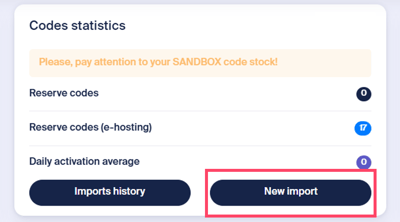
Several sections will then be displayed.
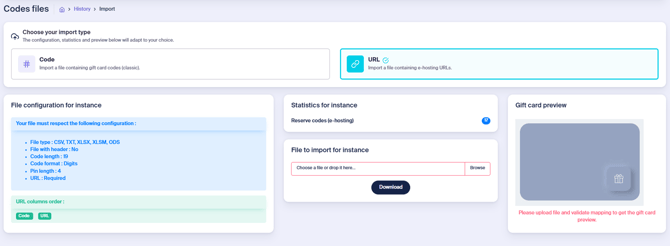
\- Import type
Start by selecting the type of code you would like to import: **Digital gift cards** (code + PIN) or **e-hosting URLs.**
\- File Configuration for the Instance
This section contains the requirements and configuration rules that your file must comply with to be successfully imported into the platform. You will find details such as the supported file type, the expected code formats ...
\- Instance statistics
This section allows you to monitor the number of available codes and anticipate future replenishment needs. You can also configure notifications in the settings to receive alerts when the reserve code threshold is reached.
\- File to import for the instance
Click “Browse” to select the file(s) you wish to import, then click “Download”.
When the upload is successful, a temporary confirmation message will appear in the upper-right corner of the page.
\- Gift card preview
This section provides a preview of the gift card as it will appear once the file has been successfully imported.
**Step 2** is the verification and validation by the Buybox system.
The “File Preview” section will confirm whether the file structure complies with the predefined configuration.
If the file structure does not match the expected configuration, the preview will display a list of identified issues. Please make sure that you obtain a new production code file correcting each issue listed.
Once the corrections have been made, restart the import process from **Step 1** using the newly generated file.
When your file is compliant, the file preview will display the first 10 lines of the uploaded production code file. At this stage, you must check that the values for codes, references, amounts, etc., meet the requirements before confirming the import into the Buybox system.
You can then validate the import by ticking the checkbox confirming that you have provided a valid code file or e-hosting URL file, then click“Validate Import”.
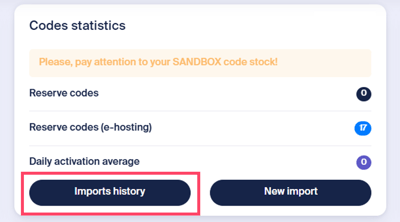
You can also review previous imports, their status, and the type of replenishment performed (**digital gift card codes** or **e-hosting URLs**) by clicking“Import History”.
⚠️ Configuring notification recipients
Before importing your production code files, the corresponding notifications must be configured in the Buybox Network back office. To do so, navigate to: Settings \> Notifications \> Codes.
Make sure that both notifications within the CODES section are enabled, enter the recipients’ email addresses, and click “Save Changes” at the bottom of the page.
⚠️Supported file formats
The following file formats are supported : CSV, TXT, XLSX, XLSM, ODS.
Your code files must be generated using one of these formats. If the import of your digital gift card code file or e-hosting URL file is rejected, we recommend switching to the TXT format, which is often more stable.
There are no mandatory naming requirements for your code files.
If you encounter any difficulties, please do not hesitate to contact our [Support](https://help.buybox.net/index.php?a=add&category=3) team.
- [Buybox B2C](https://support.buybox.net/en/knowledge-base/buybox-b2c?hsLang=en#main-content)
- [Loyalty campaign](https://support.buybox.net/en/knowledge-base/buybox-b2c?hsLang=en#loyalty-campaign)
- [Buybox Network Brand](https://support.buybox.net/en/knowledge-base/buybox-network-brand?hsLang=en#main-content)
- [Dashboard](https://support.buybox.net/en/knowledge-base/buybox-network-brand?hsLang=en#dashboard)
- [Distributors](https://support.buybox.net/en/knowledge-base/buybox-network-brand?hsLang=en#distributors)
- [Promotions](https://support.buybox.net/en/knowledge-base/buybox-network-brand?hsLang=en#promotions)
- [Management](https://support.buybox.net/en/knowledge-base/buybox-network-brand?hsLang=en#management)
- [Guides](https://support.buybox.net/en/knowledge-base/guides?hsLang=en)
[](https://www.buybox.net/)
[mailto:email@email.com](mailto:email@email.com)
Copyright © 2026, Buybox Oonetic